

Your container is backed up every night: files, databases and cron jobs. You can take an extra backup at any time, download one, or restore your whole site, one database or a single file yourself. A short summary is in Backups and Restore; this guide walks through each step.
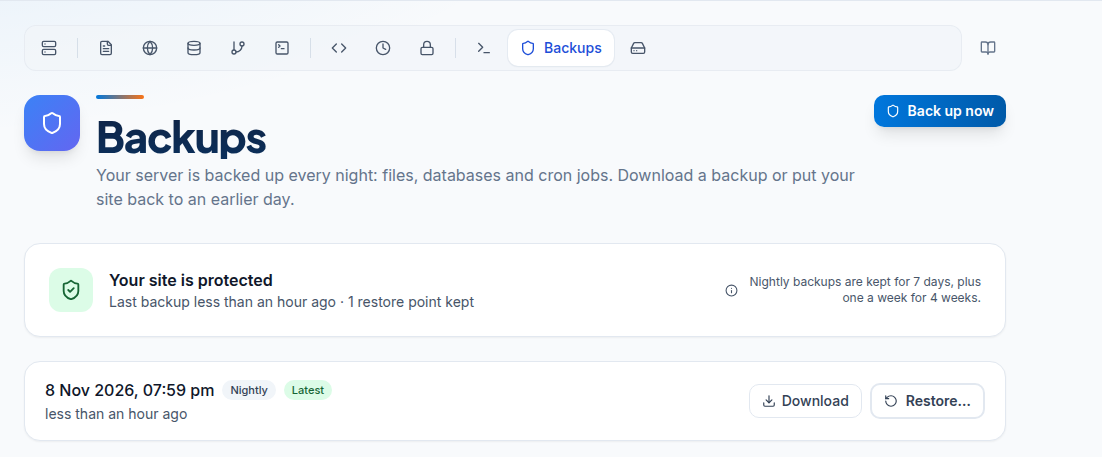
Log in to the client area, open Hosting, choose the Container hosting tab and click Manage next to your site. Go to the Backups tab. Back up now makes a restore point. Each backup has Download and Restore…. Restore lets you choose Everything, One database or One file or folder. Nightly backups are kept for 7 days, plus one a week for 4 weeks.
What is backed up
- Everything in your home folder, including
public_html. - Every MySQL database on the container.
- Your cron jobs.
Backups are stored away from your container. The server must be running for the nightly backup to run.
Take a backup now
Click Back up now before a risky change: a plugin or theme update, an import, a bulk delete. The new restore point appears in the list.
Download a backup
Click Download on a backup and confirm it is you. You get one archive with your files and database dumps. Keep a copy somewhere else; it is the only copy that survives if the service is closed.
Restore
- Click Restore… on the backup you want.
- Choose what to put back:
- Everything: files, databases and cron jobs go back to that day. Type
restoreto confirm. - One database: only that database; every table in it is replaced. Files stay as they are.
- One file or folder: only that path, for example
public_html/wp-content/uploads. Everything else stays as it is.
- Everything: files, databases and cron jobs go back to that day. Type
- Confirm.
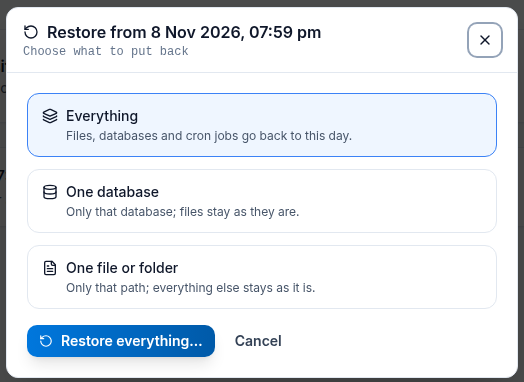
A restore replaces what is there now with the backup copy. Orders, posts or files added since that backup are lost in what you restore. If you are not sure, click Back up now first, so you can get back to where you are.
To bring back a database you deleted, restore Everything from a backup taken before you deleted it.
How long backups are kept
Nightly backups are kept for 7 days, plus one a week for 4 weeks. Older ones are removed automatically.
When you cancel
Closing the service deletes its backups too. Download what you want to keep before you cancel.
Frequently asked questions
How often is my container backed up?
Every night, automatically. You can also click Back up now at any time.
How far back can I restore?
Nightly backups are kept for 7 days, plus one a week for 4 weeks.
Can I restore just one file?
Yes. Choose One file or folder in the restore window and enter the path inside your home folder.
Do backups include my databases?
Yes. Every MySQL database on the container is included, along with your files and cron jobs.
Are backups kept after I cancel?
No. Closing the service deletes its backups. Download what you need first.