

To put your site on your own domain, add the domain on the Domains tab and point its DNS to your container. HTTPS is free and switches on by itself. A short summary is in Domains and Free HTTPS.
Domains tab > Add domain > enter example.com > Add. At the company that runs your DNS, set A @ and A www to the address shown on the Point your domain here card. Add www.example.com as a redirect. HTTPS is issued on the first secure visit.
1. Add the domain
- Log in to the client area, open Hosting, choose the Container hosting tab and click Manage next to your site. Go to the Domains tab.
- Click Add domain and type the name without
http://orwww, for exampleexample.com. - Keep A website (uses a plan domain) selected and click Add.
2. Point the DNS
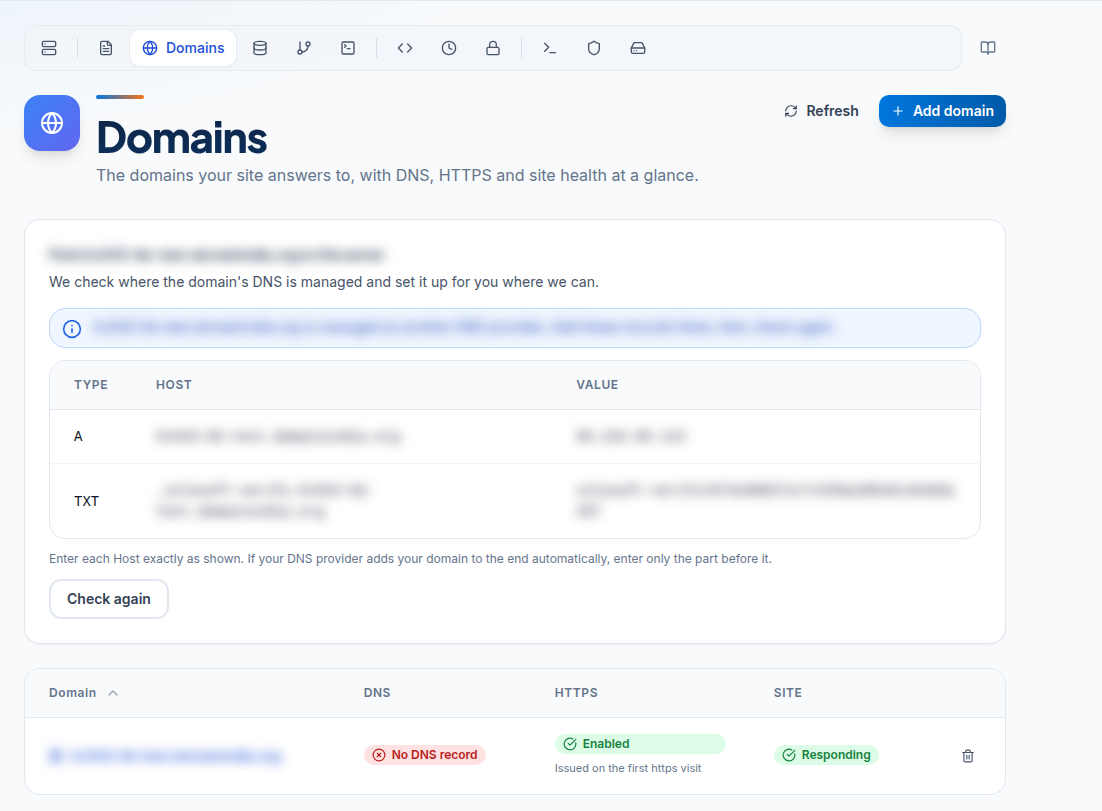
The Point your domain here card lists the records to set:
| Type | Name | Value |
|---|---|---|
| A | @ | the address shown on the card |
| A | www | the same address |
Set them where your domain's DNS is managed (your registrar or DNS provider). Changes usually work within an hour, sometimes up to a day.
After you add a domain, a Point example.com to this server card checks where its DNS is managed. Where it can, the panel sets the records up for you. Otherwise it lists the records to add yourself, which can include a TXT record that proves you own the domain. Enter each host exactly as shown, then click Check again.
3. Add www
The panel suggests Add www.example.com as a redirect. Accept it: visitors who type www go to your main address. A redirect is free; it does not use a plan domain.
4. HTTPS
Nothing to buy or install. Once DNS points here, a free certificate is issued on the first https:// visit and renewed automatically. If the HTTPS badge stays Off, click Turn on HTTPS, then visit your site over https:// once.
Reading the status badges
- DNS: "Pointed here" is good. "Not pointed here" or "No DNS record" means the change at your DNS provider is missing or still spreading.
- HTTPS: "Enabled", or "Issued on the first https visit".
- HTTP: "Responding" is good. "Page not found" usually means there is no
index.phporindex.htmlinpublic_html.
Every domain serves the same site
All website domains on a container serve the same files from public_html. A second domain is another address for the same site, not a second website. For two separate websites you need two containers. Your plan sets how many domains you can add; see Container Hosting Plans and Limits.
Before your domain is ready
Use Preview site on the overview to see your site on its preview address while DNS is not pointed yet.
Email on this domain
Changing the A records does not move email. Keep your MX records where your mailboxes are. Container Hosting has no mailboxes; see Sending Email from Your Website.
Frequently asked questions
How long until my domain works?
Usually within an hour after you change the A records, sometimes up to a day.
Do I pay for the SSL certificate?
No. HTTPS is free and is issued and renewed automatically once DNS points to your container.
Does www count as a separate domain?
Not if you add it as a redirect, which the panel suggests. A redirect does not use a plan domain.
Can I host two different websites on one container?
No. Every website domain on a container serves the same public_html. Use a second container for a second site.
Should I change my nameservers?
No need. Change only the A records for @ and www, and leave MX and other records as they are.