

The Terminal tab opens a command line on your container in your browser. It runs as your site user, so it is the place for WP-CLI, Composer, git and PHP scripts. There is no SSH shell login to Container Hosting; the Terminal replaces it.
Log in to the client area, open Hosting, choose the Container hosting tab and click Manage next to your site. Go to the Terminal tab, enter your 2FA code or account password and click Open terminal. You start in public_html. It closes after 15 minutes without typing, and after 2 hours at most. One terminal can be open per server.
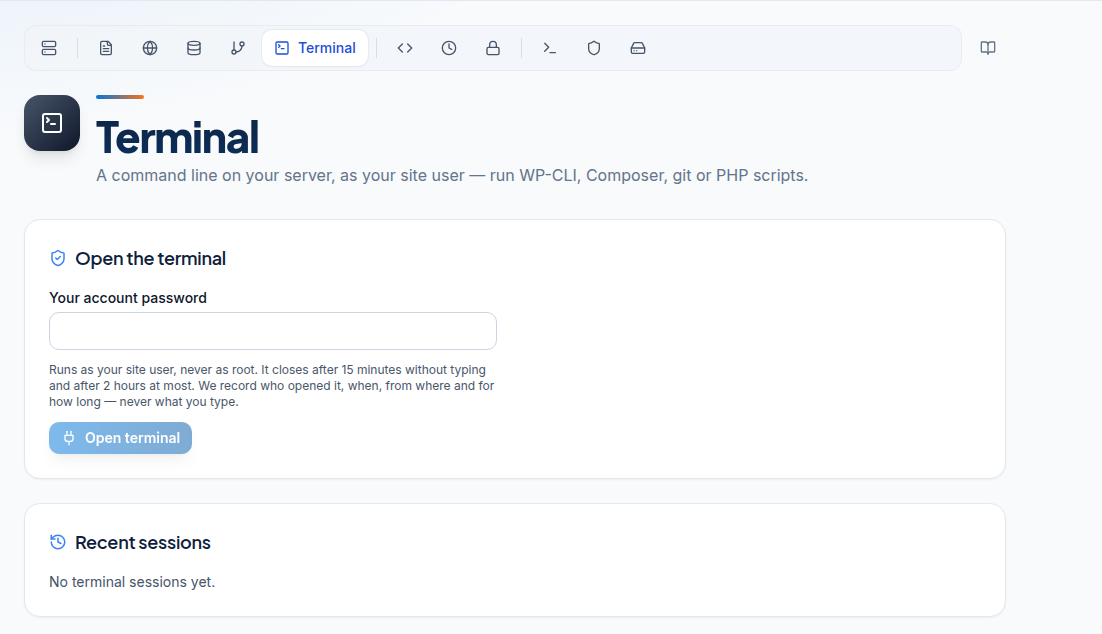
Open it
- Log in to the client area, open Hosting, choose the Container hosting tab and click Manage next to your site.
- Click the Terminal tab.
- Type your 2FA code, or click Use my password instead and type your account password (the one for the client area).
- Click Open terminal.
You start in ~/public_html as your site user.
What you can do
- WP-CLI:
wp plugin list,wp core update,wp search-replace 'http://old' 'https://new',wp cache flush. - Composer:
composer install --no-devfor Laravel and other PHP projects. - git:
git clone,git pulland other commands. For deploys on every push, use the Git deploy tab: see Git Deploy and Staging. - PHP: run scripts with
php script.php, check the version withphp -v. - Files: everyday commands such as
ls,cp,mvandtar.
Limits
- Your user, never root. There is no
sudoand you cannot install system packages. - Timeouts: 15 minutes without typing closes it, and every session ends after 2 hours.
- One at a time: one terminal per server. If one is already open (another tab or another person) you see who opened it, when and from where, with a Close that terminal button.
- Email: outgoing port 25 is blocked. Mail goes out through an SMTP provider on 587 or 465.
- Long jobs: for something that should run on its own, use the Cron jobs tab, not an open terminal.
- Suspended service: the Terminal opens only while the service is active.
- Staff sessions: if our team signs in to your client area to help you, they cannot open your terminal.
Privacy
We record who opened the terminal, when, from where and for how long. We never record what you type.
If it does not open
- "Too many terminal requests": wait a minute and try again.
- "A terminal is already open": click Close that terminal, then open a new one.
- Wrong password or code: after too many wrong tries, wait 15 minutes.
Frequently asked questions
Is the Terminal the same as SSH?
It is a shell in your browser, as your site user. There is no SSH login with a client such as PuTTY; use SFTP for files.
Can I use sudo or install packages?
No. The Terminal runs as your site user, never as root. If you need root, a VPS is the right product.
Why did my terminal close?
It closes after 15 minutes without typing, and every session ends after 2 hours. Open it again with your 2FA code or password.
Is Node.js available?
No. The Terminal has PHP, WP-CLI, Composer and git. For Node.js apps, use a VPS or the App Platform.
Do you record what I type?
No. We record who opened the terminal, when, from where and for how long, never the commands.