

Your container has its own SFTP login. Use it to upload a website, download a copy of your files, or edit files in your own editor. You can sign in with the SFTP password or with an SSH key. There is no SSH shell login; for commands, use the browser Terminal.
Log in to the client area, open Hosting, choose the Container hosting tab and click Manage next to your site. The Connect with SFTP card on the overview shows the host, the port and your username. The port is your own, not 22. Your site lives in public_html. To log in without a password, add your public key under Key login (no password).
Find your SFTP details
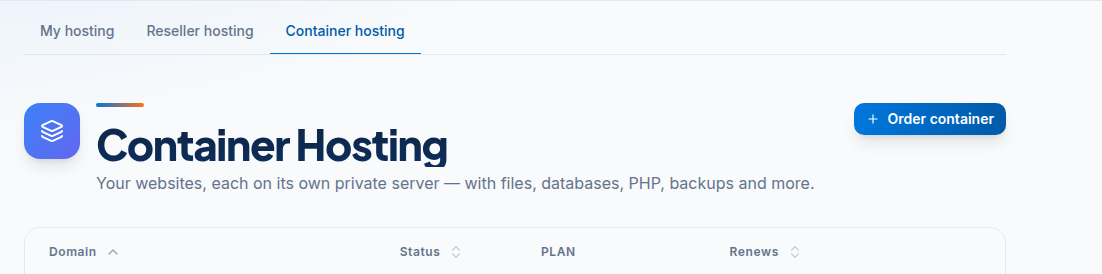
- Log in to the client area, open Hosting, choose the Container hosting tab and click Manage next to your site.
- On the Overview tab, find the Connect with SFTP card.
- Note the Host, Port and Username. The card also has a ready-made command:
sftp -P <port> <username>@<host>.
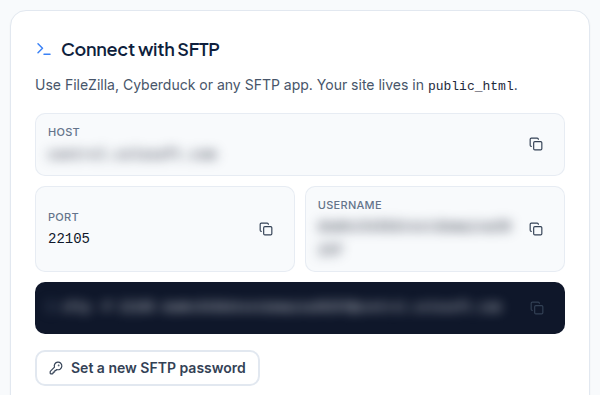
When you connect you land in your home folder. The website is served from public_html; logs and tmp sit beside it.
Set or reset the SFTP password
The password is not emailed. To get one:
- On the Connect with SFTP card, click Set a new SFTP password.
- Confirm it is you with your 2FA code or your account password. The check stays valid for 30 minutes.
- Copy the new password. It is shown once and cannot be retrieved again. The old password stops working at once.
Connect with FileZilla
- Open File > Site Manager > New site.
- Protocol: SFTP - SSH File Transfer Protocol.
- Host and Port: as shown on the card.
- Logon Type: Normal, then your User and Password. For a key, choose Key file and select your private key.
- Click Connect, accept the server key the first time, then open
public_html.
Connect with WinSCP (Windows)
- File protocol: SFTP.
- Host name, Port number and User name as shown on the card, then the password.
- For a key, click Advanced > SSH > Authentication and choose your private key. WinSCP converts an OpenSSH key to
.ppkfor you. - Click Login.
Log in with an SSH key
- Make a key on your computer if you have none:
ssh-keygen -t ed25519. - Copy the public key, the one line in
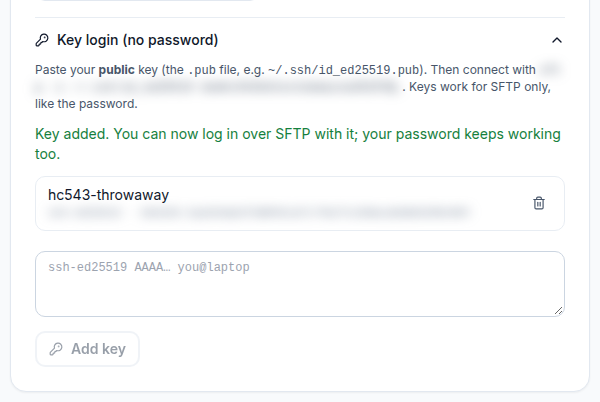
~/.ssh/id_ed25519.pub. - On the overview, open Key login (no password), paste the key into Public key and click Add key. Confirm it is you if asked.
- Connect:
sftp -i ~/.ssh/id_ed25519 -P <port> <username>@<host>.
Good to know:
- Keys work for SFTP only, like the password. Your password keeps working after you add a key.
- Accepted keys:
ssh-ed25519(recommended),ecdsa,ssh-rsaof 2048 bits or more, and security-key (sk-) keys. Up to 10 keys per server. - Paste the public key (the
.pubfile). The panel refuses a private key. - To revoke a key, click Remove key. It stops working for SFTP at once.
If you cannot connect
- Connection refused or timed out: check the port. It is the one on the card, not 22.
- Permission denied: reset the SFTP password, or check that you added the public half of the key you are using.
- Suspended service: while a service is suspended, SFTP (password and key) is blocked. It works again once the invoice is paid.
- 403 after uploading: files should be
644and folders755. See Managing Files and Using SFTP.
For small changes you can also use the Files tab in the panel (uploads up to 512 MB per file).
Frequently asked questions
What is the SFTP port for my container?
Each container has its own port, shown on the Connect with SFTP card on the overview. It is not 22.
Can I log in over SSH?
No. Container Hosting has SFTP for files and a browser Terminal for commands. There is no SSH shell login.
Do SSH keys replace the password?
No. A key you add under Key login works for SFTP alongside the password. Both keep working until you change the password or remove the key.
I lost my SFTP password. What now?
Click Set a new SFTP password on the overview. The new password is shown once; the old one stops working at once.
Which folder is my website?
public_html in your home folder. A file at public_html/index.php is the home page of your domain.