

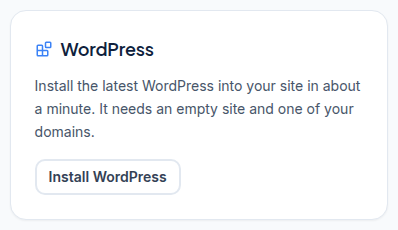
The WordPress card on your container overview installs the latest WordPress for you. It creates the database, writes wp-config.php and makes a strong admin password. It takes about a minute.
Add your domain on the Domains tab, make sure public_html is empty, then click Install WordPress on the overview. Enter a site title, an admin username (not "admin") and an admin email. Copy the admin password shown at the end; it is shown once.
Before you start
- A domain on the server. The installer asks which of your domains WordPress runs on. If the card says Add a domain first, add it on the Domains tab. See Add a Domain and HTTPS.
- An empty
public_html. WordPress installs only into an empty site. If the installer says "public_html already has files in it", move or delete those files first, on the Files tab or over SFTP. Take a backup first if they matter. - A free database. The installer creates its own database, named after your container with
_wpat the end. It counts towards your plan's databases.
Install it
- Log in to the client area, open Hosting, choose the Container hosting tab and click Manage next to your site.
- On the WordPress card, click Install WordPress.
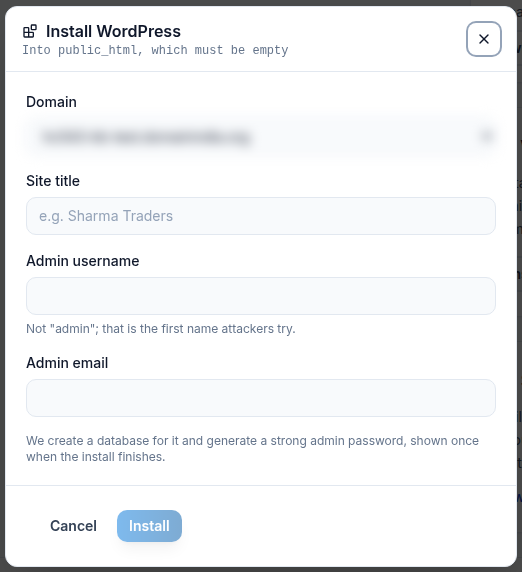
- Choose the Domain.
- Enter the Site title, for example your business name.
- Enter an Admin username. Do not use "admin"; it is the first name attackers try.
- Enter the Admin email. WordPress sends password-reset emails here.
- Click Install and wait about a minute.
- When it finishes, copy the Admin password. It is shown once. Then click Open WordPress admin.
If something goes wrong during the install, nothing is left half-installed. Try again, or open a ticket.
Before your domain points here
Until your domain's DNS points to the container, use Preview site on the overview. The installer adds a small helper plugin so WordPress links stay on the preview address. It is safe to delete once your domain is live.
After the install
- Make WordPress send email. Container Hosting has no mailboxes and PHP
mail()does not deliver. Add an SMTP plugin; see Sending Email from Your Website. - Set up WordPress cron. On the Cron jobs tab, add a job that runs
wp-cron.phpevery 15 minutes. - Take a backup on the Backups tab, so you have a clean restore point.
- Try updates on staging first. See Git Deploy and Staging.
You can also manage WordPress from the Terminal with WP-CLI, for example wp plugin update --all.
Lost the admin password?
The panel shows it only once. Use Lost your password? on the WordPress login page, or in the Terminal run wp user update <username> --user_pass='<new password>'.
Frequently asked questions
Can I install WordPress into a subfolder?
No. The one-click installer installs into public_html only. For a subfolder, install WordPress yourself over SFTP or with WP-CLI in the Terminal.
Why does the installer say public_html has files in it?
WordPress installs only into an empty site. Move or delete the files in public_html first, on the Files tab or over SFTP.
Can I choose the admin password?
No. The installer makes a strong password and shows it once. Change it later in WordPress under Users > Profile.
Will WordPress emails work?
Only after you add an SMTP plugin. Container Hosting has no mailboxes and PHP mail() does not deliver.
Can I install other applications in one click?
No. Only WordPress has a one-click installer. Other applications can be uploaded over SFTP or set up with Composer or git in the Terminal.